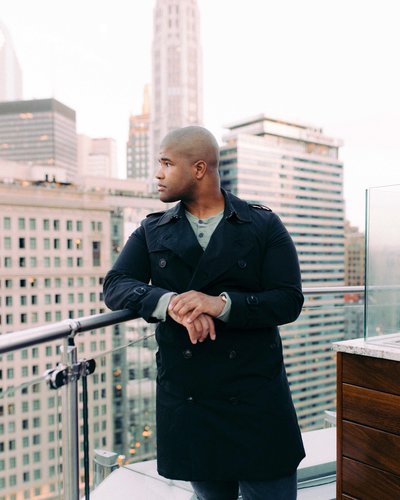
DaVinci Resolve’s AI Depth Map tool has quietly become one of my favorite new features. I’ll admit it. I was reluctant at first. I learned color grading in DaVinci Resolve the hard way, node by node, and I was slow to adopt tools that made things easier. But once I embraced the depth map, it completely shifted how I approach contrast, lighting control, and creative color.
In this post, I’ll walk you through three ways I’ve been using the Depth Map in my own workflow: pulling back blown highlights, creating color contrast, and finessing studio lighting. Whether you’re new to Resolve or just hesitant to adopt the newer tools, this one is worth adding to your toolkit.
Rethinking What “Correct” Looks Like
Before we get technical, let’s talk mindset.
For a long time, I avoided these new tools because I thought doing things the “hard” way was more correct. But at the end of the day, Resolve’s features are just that. Tools. And your only real job is to get the look you want. Whether it’s complex or simple doesn’t matter. If it gets the job done, it’s valid.
So that’s how I want you to think about this tutorial. Not as a set of rules, but as a set of options. Let’s jump in.
Setup: Project Settings for Depth Map Workflow
Before applying the depth map, get your project settings locked in.
- Color Science: DaVinci YRGB Color Managed
- Color Processing Mode: HDR DaVinci Wide Gamut
- Timeline Output: Rec.709 Gamma 2.4 SDR (calibrated for YouTube delivery)
Once that’s set, Resolve handles the transforms behind the scenes. No CST nodes needed.
Example 1: Recovering Highlight Detail
Let’s start simple. In one of my Red Rock Canyon test shots, the sky was starting to blow out. Using the Depth Map, I was able to isolate just the background and pull those highlights back.
Here’s how I set it up:
- Add the Depth Map to an early node (before contrast adjustments)
- Set quality to faster, then invert the map
- Tweak the near limit until your subject is fully masked out
- Connect the alpha output to a new node
- Use gain to bring down the sky and highlights
- Fine-tune the mask edges with the near limit again if needed
Bonus tip: I leave an empty node in the chain just in case I need to denoise flicker artifacts that sometimes pop up in the background. A value of 15 usually does the trick.
Example 2: Creating Teal & Orange Color Contrast
Now let’s talk creative color separation.
In another shot, I used the Depth Map not to recover highlights, but to push a teal and orange color grade. Complementary tones that help the subject pop.
- Add a depth map to Node 2 and invert
- Adjust the offset to push a teal tone into the background
- Then duplicate the map, invert it again, and apply it to the subject
- Use gain to warm up the subject’s highlights
- Fine-tune contrast and gamma to blend everything together
No qualifiers. No tracking. No rotoscoping. Just two masks and some smart gain control.
Example 3: Finessing Studio Lighting
In my studio setup, I light primarily for skin. The problem is, my rim light bounces off the wall behind me, raising the ambient exposure more than I want. The Depth Map solves that instantly.
- Add the map, invert, and isolate just the background
- Use a parallel node structure and pipe the alpha output into multiple correction paths
- In one node, pull down lift and gamma to darken the background
- Add some cool tones to the shadows
- Gently bring up gain if you want to recover a touch of ambient highlight
It’s a subtle shift, but it gives the image more shape and separation without changing your actual lighting setup.
Final Thoughts
This is just the start of what’s possible with the AI Depth Map in Resolve 20. Once you wrap your head around how to isolate depth layers and manipulate them, you’ll find all sorts of ways to enhance lighting, fix exposure, or dial in color without reaching for a qualifier.
I know I was late to the party, but I’m all in now. And if you’ve been hesitant like I was, give it a try. You don’t need to use it on every clip, but for certain shots, it’s a game changer.
Keep Climbing,
Sidney Baker-Green